GUIDE · 3 MIN READ
How to make an animated eye GIF
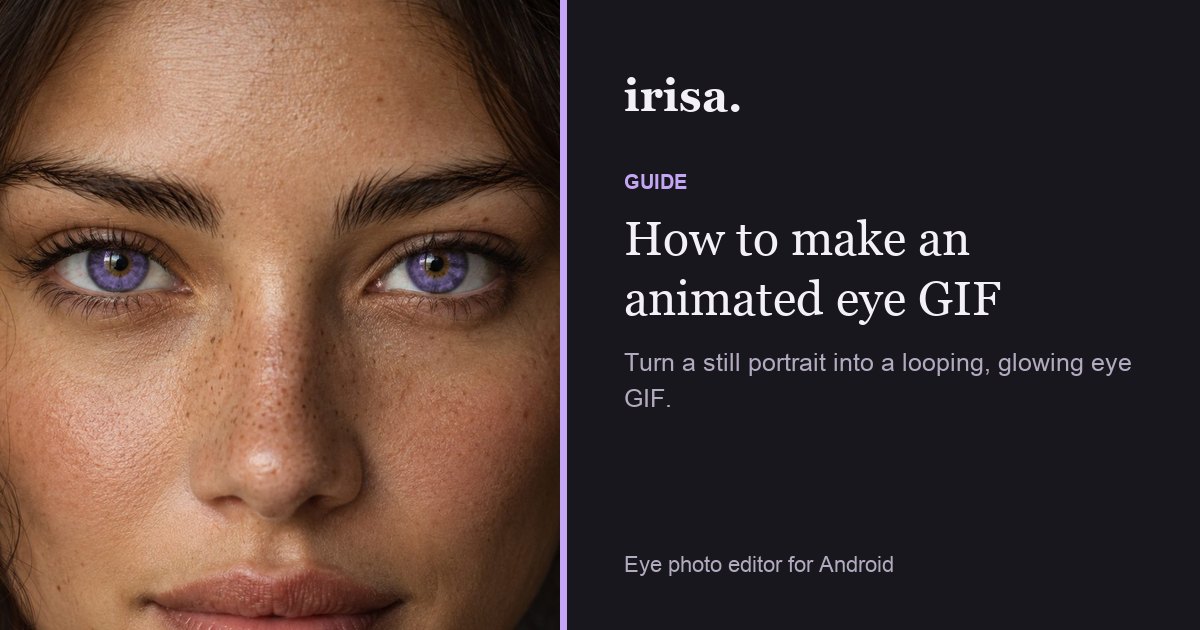
A moving effect inside the eyes makes a still photo feel alive. Irisa’s Animated eyes adds motion to the iris and exports a looping GIF that works in messages and stories.
Step by step
- Open Animated eyes.
From Home, open Animated eyes. It is part of Irisa Pro; without Pro, watch a short video to unlock this use.
- Choose a motion.
Pick neon pulse, galaxy motion, fire flicker or laser motion.
- Set color and speed.
Choose the palette and how fast the effect moves.
- Export the GIF.
Save as GIF. The file loops, so it plays continuously when shared.
Tips
- Slower speeds look more hypnotic; faster ones suit memes.
- Galaxy motion works beautifully on dark or night portraits.
- Share GIFs directly from the save screen to keep the animation.
Preview the animated eyes (gif) in your browser, then do it on your own photo in Irisa.
Questions
Can I still save a still image?
Yes. Use JPEG or PNG for stills and GIF for animations.
Why does my GIF look smaller?
GIFs are exported at a size suited to messaging so they stay quick to send.
Is it free?
Animated eyes is an Irisa Pro editor; free users unlock each use with a short video.