GUIDE · 4 MIN READ
How to create a heterochromia effect
Heterochromia, two different eye colors, is rare and striking. You can recreate both kinds: complete heterochromia, where each eye has its own color, and sectoral, where only part of one iris differs.
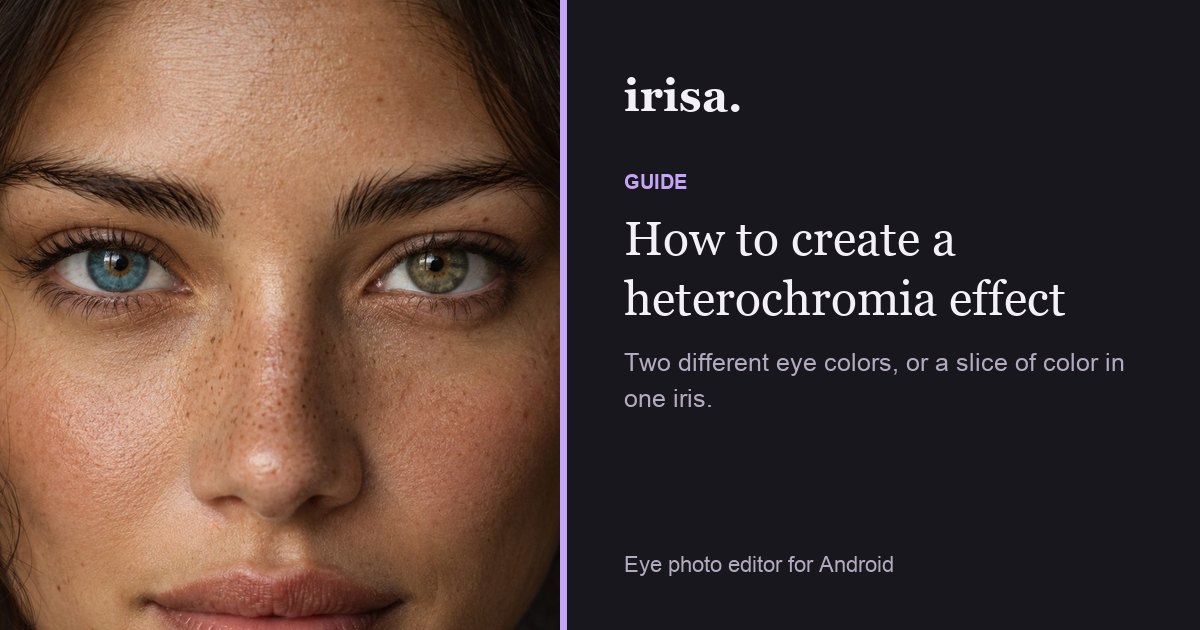
Step by step
- Open the heterochromia editor.
From Home, open Heterochromia under creative tools and choose your photo.
- Set a color per eye.
Select the left eye and pick a shade, then do the same for the right eye. Keep one eye natural if you prefer.
- Add a sector (optional).
For sectoral heterochromia, add a sector to one iris and set how much of the iris it covers and where it sits.
- Balance the two eyes.
Adjust each eye’s intensity so neither looks pasted on. Similar brightness reads as more natural.
- Save or keep layering.
Save the photo, or open Layer studio to add lashes, liner or reflections on top.
Tips
- Classic pairs: blue and brown, green and hazel, grey and amber.
- A sector covering about a quarter of the iris looks the most natural.
- Keep the pupils untouched so both eyes still look like yours.
Preview the heterochromia editor in your browser, then do it on your own photo in Irisa.
Questions
What is sectoral heterochromia?
It is when only part of one iris is a different color, often a wedge of brown in a blue or green eye.
Can I change just one eye?
Yes. Leave one eye at its original color and change only the other.
Is the heterochromia editor free?
Yes, it is one of the free editors.